Wednesday, April 13, 2011

Disk I/O Components

What we blithely call a "Disk I/O" is actually made up of several components, each of which may have an impact on overall performance. These layers may be broken down as follows for a typical I/O operation:
  • POSIX: Application calls a POSIX library interface. (These frequently map directly to system calls, except for the asynchronous interfaces. These latter work via pread and pwrite.)
  • System Call: The relevant node and vfs system calls are:
    • vnode system calls:
    • close()
    • creat()
    • fsync()
    • ioctl()
    • link()
    • mkdir()
    • open()
    • read()
    • rename()
    • rmdir()
    • seek()
    • unlink()
    • write()
    • vfs system calls:
    • mount()
    • statfs()
    • sync()
    • umount()
  • VOP: The vnode operations interface is the architectural layer between the system calls and the filesystems. DTrace provides the best way to examine this layer. Starting in version 0.96, the DTrace Toolkit's vopstat command allows direct monitoring at this level.
  • Filesystems: There is some discussion of filesystem tuning and filesystem caching at the bottom of this page. Further information on troubleshooting a particular filesystem is contained in each filesystem's web page. (This site contains pages for NFS, UFS and ZFS filesystems.)
  • Physical Disk I/O: This is the portion of the I/O that involves the transfer of data to or from the physical hardware. Traditionally, I/O troubleshooting focuses on this portion of the I/O process.
McDougall, Mauro and Gregg suggest that the best way to see if I/O is a problem at all is to look at the amount of time spent on library and system calls via DTrace.
For example, the DTrace Toolkit's procsystime utility tracks time spent on each system call. Similarly, the dtruss -t syscall -p PID command can examine the time spent on a particular system call for a process. The truss -D -p PID command also reveals the time spent by a process in I/O system calls, but it imposes a severe performance penalty.
If the system call statistics reveal a problem, we should look at the raw disk I/O performance.

Physical Disk I/O

The primary tool to use in troubleshooting disk I/O problems is iostat. sar -d provides useful historical context. vmstat can provide information about disk saturation. For Solaris 10 systems, dtrace can provide extremely fine-grained information about I/O performance and what is causing any utilization or saturation problems. The DTrace Toolkit provides a number of ready-to-use scripts to take advantage of DTrace's capabilities.
To start, use iostat -xn 30 during busy times to look at the I/O characteristics of your devices. Ignore the first bunch of output (the first group of output is summary statistics), and look at the output every 30 seconds. If you are seeing svc_t (service time) values of more than 20 ms on disks that are in use (more than, say, 10% busy), then the end user will see noticeably sluggish performance.
(With modern disk arrays that contain significant amounts of cache, it may be more useful to compare to service times during periods when no performance problems are experienced. If the reads and writes are largely hitting the cache on a fiber-attached disk array, average service times in the 3-5 ms range can be achieved. If you are seeing a large increase in service time during the problem periods, you may need to look at your disk array's monitoring features to identify whether or not more disk array cache would be useful. The most useful measurements to be used with modern disk arrays are the throughput measurements, since large up-front caches mask any other issues.)

Disk Utilization

If a disk is more than 60% busy over sustained periods of time, this can indicate overuse of that resource. The %b iostat statistic provides a reasonable measure for utilization of regular disk resources. (The same statistic can be viewed via iostat -D in Solaris 10.)
Utilization may not take into account the usage pattern, the fact that disk array utilization numbers are almost impossible to interpret correctly, or whether application effects are adequately handled by I/O caching. The service times are the key to seeing whether a high utilization is actually causing a problem.
The DTrace Toolkit provides a way to directly measure disk utilization via the iotop -CP command. This command shows UIDs, process IDs and device names, which can help identify a culprit. (The -C option provides a rolling output rather than having it clear at each time step. The -P option shows the %I/O utilization.)

Disk Saturation

A high disk saturation (as measured via iostat's %w) always causes some level of performance impact, since I/Os are forced to queue up. Even if the disk is not saturated now, it is useful to look at throughput numbers and compare them to the expected maximums to make sure that there is adequate head room for unusually high activity. (We can measure the maximum directly by doing something like a dd or mkfile and looking at the reported throughput.)
If iostat consistently reports %w > 5, the disk subsystem is too busy. In this case, one thing that can be done is to reduce the size of the wait queue by setting sd_max_throttle to 64. (The sd_max_throttle parameter determines how many jobs can be queued up on a single HBA, and is set to 256 by default. If the sd_max_throttle threshhold is exceeded, it will result in a transport failure error message.)
Reducing sd_max_throttle is a temporary quick fix. Its primary effect is to keep things from getting quite so backed up and spiraling out of control. One of the permanent remedies below needs to be implemented.
Another possible cause for a persistently high %w is SCSI starvation, where low SCSI ID devices receive a lower precedence than a higher-numbered device (such as a tape drive). (See the System Bus/SCSI page for more information.)
Another indication of a saturated disk I/O subsystem is when the procs/b section of vmstat persistently reports a number of blocked processes that is comparable to the run queue (procs|kthr/r). (The run queue is roughly comparable to the load average.)
The DTrace Toolkit's iotop -o 10 command shows disk I/O time summaries. Each process's UID, process ID and device names are shown, along with the number of nanoseconds of disk time spent. This can help us to identify the heavy hitters on a saturated disk.

Usage Pattern

It is useful to know whether our I/O is predominantly random or sequential. Sequential I/O is typical of large file reads and writes, and typically involves operating on one block immediately after its neighbor. With this type of I/O, there is little penalty associated with the disk drive head having to move to a new location. Random I/O, on the other hand, involves large numbers of seeks and rotations, and is usually much slower.
Disk I/O can be investigated to find out whether it is primarily random or sequential. If sar -d reports that (blks/s)/(r+w/s) < 16Kb (~32 blocks), the I/O is predominantly random. If the ratio is > 128Kb (~256 blocks), it is predominantly sequential. This analysis may be useful when examining alternative disk configurations.
The DTrace Toolkit provides us a way to directly measure seek times using the seeksize.d script. This script is a direct measurement of disk usage patterns. If there are large numbers of large seeks, it indicates that our physical drives are spending a lot of time moving heads around rather than reading or writing data.
To identify the culprit, the DTrace Toolkit contains a script called bitesize.d, which provides a graph of I/O sizes carried out by each process. If there are a large number of small I/Os, the pattern is predominantly random. If there are mostly large I/Os, the process is exhibiting sequential behavior.
DTrace also provides a way to track which files are accessed how often. The args2->fi_pathname value from the io provider gives us a handle into this. For example, we could use a one-liner like:
dtrace -n 'io:::start { printf("%6s %-12s %6s", pid, execname args[2]->fi_pathname); } '
to provide raw data for further processing, or we could use an aggregation to collect statistics. The DTrace Toolkit's iosnoop program provides a flexible way to collect this sort of information. (The -h option provides usage notes on how to use it.)

Disk Errors

iostat -eE reports on disk error counts since the last reboot. Keep in mind that several types of events (such as ejecting a CD or some volume manager operations) are counted in this output. Once these error messages rise above 10 in any category, further investigation is warranted.

Restructuring I/O

The usual solutions to a disk I/O problem are:
  • Check filesystem kernel tuning parameters to make sure that DNLC and inode caches are working appropriately. (See "Filesystem Caching" below.)
  • Spread out the I/O traffic across more disks. This can be done in hardware if the I/O subsystem includes a RAID controller, or in software by striping the filesystem (using Solaris Volume Management/DiskSuite, Veritas Volume Manager or ZFS), by splitting up the data across additional filesystems on other disks, or even splitting the data across other servers. (In extreme cases, you can even consider striping data over only the outermost cylinders of several otherwise empty disk drives in order to maximize throughput.) Cockroft recommends 128KB as a good stripe width for most applications. In an ideal world, the stripe width would be an integer divisor of the average I/O size to split the traffic over all disks in the stripe.
  • Redesign the problematic process to reduce the number of disk I/Os. (Caching is one frequently-used strategy, either via cachefs or application-specific caching.)
  • The write throttle can be adjusted to provide better performance if there are large amounts of sequential write activity. The parameters in question are ufs:ufs_HW and ufs:ufs_LW. These are very sensitive and should not be adjusted too far at one time. When ufs_WRITES is set to 1 (default), the write throttle is enabled. When the number of outstanding writes exceeds ufs_HW, writes are suspended until the number of outstanding writes drops below ufs_LW. Both can be increased where large amounts of sequential writes are occurring.
  • tune_t_fsflushr sets the number of seconds after which fsflush will run autoup dictates how frequently each bit of memory is checked. Setting fsflush to run less frequently can also reduce disk activity, but it does run the risk of losing data that has been written to memory. These parameters can be adjusted using adb while looking for an optimum value, then set the values in the /etc/system file.
  • Check for SCSI starvation, i.e., for busy high-numbered SCSI devices (such as tape drives) that have a higher priority than lower-numbered devices.
  • Database I/O should be done to raw disk partitions or direct unbuffered I/O.
  • In some cases, it may be worthwhile to move frequently-accessed data to the outer edge of a hard drive. In the outer cylinders, the read and write rates are higher.
  • It may be worthwhile to match observed and configured I/O sizes by tuning maxphys and maxcontig.

Filesystem Performance

Physical disk I/O is usually the focus of I/O troubleshooting sessions. McDougall, Mauro and Gregg suggest that it is more appropriate to focus on overall service times of I/O related system calls. (As noted above, the DTrace Toolkit's procsystime utility tracks time spent on each system call, and the dtruss -t syscall -p PID command can examine the time spent on a particular system call for a process. The pfilestat utility in the newer versions of the Toolkit also gives an indication of how much time a process spends on different I/O-related system calls.)
This approach allows end-to-end monitoring of the important portions of the I/O process. The traditional approach ignores performance problems introduced by the filesystem itself.
Filesystem latency may come from any of the following:
  • Disk I/O wait: This may be as short as zero, in the event of a read cache hit. For a synchronous I/O event, this can be reduced by restructuring disk storage or by altering caching parameters. Disk I/O wait can be monitored directly through dtrace, including through the iowait.d script.
  • Filesystem cache misses: These include block, buffer, metadata and name lookup caches. These may be adjustable by increasing the size of the relevant caches.
  • I/Os being broken into multiple pieces, incurring the penalty of addtional operations. This may be a result of the maximum cluster size for the filesystem or the OS.
  • Filesystem locking: Most filesystems have per-file reader/writer locks. This can be most significant when there is a large file (like a database file) where reads have to wait for writes to a different portion of the file. Direct I/O is a mechanism for bypassing this limitation.
  • Metadata updating: Creations, renames, deletions and some file extensions cause some extra latency to allow for updates to filesystem metadata.
The DTrace Toolkit's vopstat command allows monitoring of the number and duration of operations at the VOP level. (VOP is the architectural layer between the system calls and the filesystems, so it is at a high enough level to provide interesting information.)

Filesystem Caching

There are several types of cache used by the Solaris filesystems to cache name and attribute lookups. These are:
  • DNLC (Directory Name Lookup Cache): This cache stores vnode to path directory lookup information, preventing the need to perform directory lookups on the fly. (Solaris 7 and higher have removed a previous file path length restriction.)
  • inode cache: This cache stores logical metadata information about files (size, access time, etc). It is a linked list that stores the inodes and pointers to all pages that are part of that file and are currently in memory. The inode cache is dedicated for use by UFS.
  • rnode cache: This is maintained on NFS clients to store information about NFS-mounted nodes. In addition, an NFS attribute cache stores logical metadata information.
  • buffer cache: The buffer cache stores inode, indirect block and cylinder group-related disk I/O. This references the physical metadata (eg block placement in the filesystem), as opposed to the logical metadata that is stored in other caches.
(Note that cache statistics will be skewed by things that walk the directory tree like find.)
The block cache provides performance enhancement by using otherwise idle memory in the page cache to keep copies of recently requested information. Cache hits in the block cache obviously have a huge performance advantage.
ZFS uses an adaptive replacement cache (ARC) rather than using the page cache fo file data (like most other filesystems do).

Directory Name Lookup Cache

The DNLC stores directory vnode/path translation information. (Starting with Solaris 7, a previous path length restriction of 30 characters was lifted.)
sar -a reports on the activity of this cache. In this output, namei/s reports the name lookup rate and iget/s reports the number of directory lookups per second. Note that an iget is issued for each component of a file's path, so the hit rate cannot be calculated directly from the sar -a output. The sar -a output is useful, however, when looking at cache efficiency in a more holistic sense.
For our purposes, the most important number is the total name lookups line in the vmstat -s output, or the dir_hits and dir_misses statistics in kstat -n dnlcstats. If the cache hit percentage is not above 90%, the DNLC should be resized. (Unless the activity is such that we would not expect a good hit ratio, such as large numbers of file creations.)
DNLC size is determined by the ncsize kernel parameter. By default, this is set to (17xmaxusers)+90 (Solaris 2.5.1) or 4x(maxusers + max_nprocs)+320 (Solaris 2.6-10). It is not recommended that it be set any higher than a value which corresponds to a maxusers value of 2048 for Solaris 2.5.1-7 or 4096 for Solaris 8-10. This can be viewed via mdb -k by querying ncsize/D
To set ncsize, add a line to the /etc/system as follows:
set ncsize=10000
The DNLC can be disabled by setting ncsize to a negative number (Solaris 2.5.1-7) or a non-positive number (Solaris 8-10).

Inode Cache

The inode cache is a linked list that stores the inodes that have been accessed along with pointers to all pages that are part of that file and are currently in memory. sar -g reports %ufs_ipg, which is the percentage of inodes that were overwritten while still having active pages in memory. If this number is consistently nonzero, the inode cache should be increased. By default, this number (ufs_ninode) is set to the same value as ncsize, unless otherwise specified in the /etc/system file. As with ncsize, it is not recommended that ufs_ninode be set any higher than a value which corresponds to a ncsize for a maxusers value of 2048 for Solaris 2.5.1-7 or 4096 for Solaris 8-10.
The vmstat -s command also contains summary information about the inode cache in the inode_cache section. Among other things, this section includes sizing and hit rate information.
(The inode cache can grow beyond the ufs_ninode limit. When this happens, unused inodes will be flushed from the linked list.)
netstat -k (up through Solaris9) or kstat -n ufs_inode_cache (after Solaris 8) also report on inode cache statistics.
While resizing the inode cache, it is important to remember that each inode will use about 300 bytes of kernel memory. Check your kernel memory size (perhaps with sar -k) when resizing the cache. Since ufs_ninode is just a limit, it can be resized on the fly with adb.

Rnode Cache

The information in the rnode cache is similar to that from the inode cache, except that it is maintained for NFS-mounted files. The default rnode cache size is 2xncsize, which is usually sufficient. Rnode cache statistics can be examined in the rnode_cache section of netstat -k or via the kstat command.

Buffer Cache

The buffer cache is used to store inode, indirect block and cylinder group-related disk I/O. The hit rate on this cache can be discovered by examining the biostat section of the output from netstat -k and comparing the buffer cache hits to the buffer cache lookups. This cache acts as a buffer between the inode cache and the physical disk devices. Sun suggests tuning bufhwm in the /etc/system file if sar -b reports less than 90% hit rate on reads or 65% on writes.
Cockroft notes that performance problems can result from allowing the buffer cache to grow too large, resulting in kernel memory allocation starvation. The default setting for bufhwm allows the buffer to consume up to 2% of system memory, which may be excessive. The buffer cache can probably be limited to 8MB safely by setting bufhwm in the /etc/system file:
set bufhwm=8000
Obviously, the effects of such a change should be examined by checking the buffer cache hit rate sar -b.

Page Cache

The virtual memory on ultrasparc systems is carved into 8KB chunks known as "pages." When a file is read,it is first loaded into memory, a process known as "paging in." These are recorded in the virtual memory statistics, such as the pi column in vmstat.
Items that are paged into memory are cached there for a time. Since the same files are frequently accessed repeatedly, this caching can dramatically improve I/O performance. We would expect the size of the page cache from read and write operations to be limited by segmap_percent, which has a default of 12% of physical memory.
The page scanner's job is to free up memory caching items that have not been accessed recently. Pages are made available by placing them on the free list.
The size of the page cache and its components can be viewed by running mdb -k and using the ::memstat dcmd. The performance of the cache can be viewed with utilities available in the DTrace Toolkit; the rfileio and rfsio utilities provide cache hit rates.
The page cache is bypassed by using direct I/O.

Physical Disk Layout

The disk layout for a hard drive includes the following:

  • bootblock
  • superblock: Superblock contents can be reported via the fstyp -v /dev/dsk/* command.
  • inode list: The number of inodes for a filesystem is calculated based upon a presumption of an average file size of ~2 KB. If this is not a good assumption, the number of inodes can be set via the newfs -i or mkfs command.
  • data blocks

Inodes

Each inode contains the following information:
  • file type, permissions, etc
  • number of hard links to the file
  • UID
  • GID
  • byte size
  • array of block addresses:
    The first several block addresses are used for data storage. Other block addresses store indirect blocks, which point at arrays containing pointers to further data blocks. Each inode contains 12 direct block pointers and 3 indirect block pointers.
  • generation number (incremented each time the inode is re-used)
  • access time
  • modification time
  • change time
  • Number of sectors: This is kept to allow support for holey files, and can be reported via ls -s
  • Shadow inode location: This is used for ACLs (access control lists).
Using the indirection provided in the array of block addresses, files can be created that contain holes, or large sets of null-filled bytes.

Physical I/O

Disk I/Os include the following components:
  • I/O bus access: If the bus is busy, the request is queued by the driver. The information is reported by sar -d wait and %w and iostat -x avwait.
  • Bus transfer time: Arbitration time (which device gets to use the bus--see the System Bus/SCSI page), time to transfer the command (usually ~ 1.5 ms), data transfer time (in the case of a write).
  • Seek time: Time for the head to move to the proper cylinder. Average seek times are reported by hard drive manufacturers. Usage patterns and the layout of data on the disks will determine the number of seeks that are required.
  • Rotation time: Time for the correct sector to rotate under the head. This is usually calculated as 1/2 the time for a disk rotation. Rotation speeds (in RPM) are reported by hard drive manufacturers.
  • ITR time: Internal Throughput Rate. This is the amount of time required for a transfer between the hard drive's cache and the device media. The ITR time is the limiting factor for sequential I/O, and is reported by the hard drive manufacturer.
  • Reconnection time: After the data has been moved to/from the hard drive's internal cache, a connection with the host adapter must be completed. This is similar to the arbitration/ command transfer time discussed above.
  • Interrupt time: Time for the completion interrupt to be processed. This is very hard to measure, but high interrupt rates on the CPUs associated with this system board may be an indication of problems.
The disk's ITR rating and internal cache size can be critical when tuning maxcontig (maximum contiguous I/O size). Note: maxphys and maxcontig must be tuned at the same time. The unit of measurement for maxphys is bytes; maxcontig is in blocks.
maxcontig can be changed via the mkfs, newfs or tunefs commands.
By default, maxphys is set to 128KB for Sparc and 56KB for x86 systems. maxcontig should be set to the same size (but in blocks). We would tune these smaller for random I/O and larger for sequential I/O.

Direct I/O

Large sequential I/O can cause performance problems due to excessive use of the memory page cache. One way to avoid this problem is to use direct I/O on filesystems where large sequential I/Os are common.
Direct I/O is a mechanism for bypassing the memory page cache alltogether. It is enforced by the directio() function or by the forcedirectio option to mount.
VxFS enables direct I/O for large sequential operations. It determines which operations are "large" by comparing them to the vxtunefs parameter discovered_direct_iosz (default 256KB).
One problem that can emerge is that if large sequential I/Os are handed to VxFS as several smaller operations, caching will still occur. This problem can be alleviated by reducing discovered_direct_iosz to a level that prevents caching of the smaller operations. In particular, this can be a problem in OLTP environments.

Courtesy: http://www.princeton.edu/~unix/Solaris/troubleshoot/diskio.html

Performance killer: Disk I/O

Many people think of “performance tuning” as optimizing loops, algorithms, and memory use. In truth, however, you don’t get the huge performance gains from optimizing CPU and memory use (which is good), but from eliminating I/O calls.
Disk I/O is responsible for almost all slow websites and desktop applications. It’s true. Watch your CPU use next time you open a program, or your server is under load. CPUs aren’t the bottleneck anymore – your hard drive is. At the hardware level, the hard drive is the slowest component by an incredibly large factor. Today’s memory ranges between 3200 and 10400 MB/s. In contrast, today’s desktop hard drive speeds average about 50 MB/s (Seagate 500GB), with high-end drives getting 85MB/s (WD 640, Seagate 1TB). If you’re looking at bandwidth, hard drives are 200-300 times slower. Bandwidth, though, isn’t the killer – it’s the latency. Few modern hard drives have latencies under 13 milliseconds – while memory latency is usually about 5 nanoseconds – 2,000 times faster.
You’re probably looking at these numbers and thinking, “13ms is quite fast enough for me, and my app is only dealing with small files”. However, I have a question: what other applications are using that drive? If you’re on a shared server, the odds are high that between 25 and 2500 ASP.NET apps are being run on the same drive.
CPU, bandwidth, and memory throttling is becoming more and more common on shared servers and virtualization systems, but practical disk throttling isn’t even on the horizon from what I can tell. Improper I/O usage from any app affects everybody.
Since hard drives are slow, pending operations go into a queue. So even if your app only needs a single byte of data from the hard drive, it still has to wait its turn. It’s quite common for disk operations to take several seconds on a shared server under heavy load. If any application on the server is paging to disk from exessive memory use, it can take several minutes, causing a timeout.
Realistic I/O performance is really hard to simulate in a development environment. On a dedicated development machine, disk queues are short, and response times are usually near the optimal 13ms, which tends to give software developers gravely incrorrect ideas about the performance characteristics of their application.

Load test!

A good way to acid test your code is to run it on a cheap, overloaded shared server. Webhost4life.com has $10/month plans that are excellent for this purpose. I’m actually using Webhost4life.com for this site, and while I/O calls consistently take around 1 second each, page views are decently quick since everything is in memory. I can’t seem to get more than 30-40KB/s bandwidth though, so I’m probably going to switch hosts soon.
Stress testing can also be accomplished with load testing tools like the Web Application Stress Tool. Getting realistic results often means multiplying user load by a factor of 1000 or more, since I/O speeds can vary by that much on a production server. So, if you want to handle 50 concurrent users gracefully, test with 50,000.
One good way to make sure your app can handle high load is to get your per-request time very low. There is an extension for Firefox that provides TTFB (time-to-first-byte) information that will help you measure this. (Trace.axd is an invaluable tool here also). If requests complete in 13 milliseconds, the odds are good that you can handle 100 of those requests per second.

Cache smart

It’s not too hard to cache files in memory. Here’s one approach that uses ASP.NET’s built in caching system:
01.namespace fbs.Filesystem
02.{
03./// <summary>
04./// Provides cached read access to small, frequently used files. Use carefully!
05.//// Uses HostingEnvironment.Cache (same as app cache).
06./// </summary>
07.public static class CachedFileAccess
08.{
09./// <summary>
10./// Retrieves the file from the cache, or from disk if neccessary. Exceptions from IO.File.ReadAllText are not caught.
11./// Make sure the file exists and can be accessed before attempting this function.
12./// </summary>
13./// <param name="file">Standard pathname (C:\..</param>
14./// <param name="encoding"></param>
15./// <returns></returns>
16.public static string ReadAllText(string file, Encoding encoding)
17.{
18. 
19.if (HostingEnvironment.Cache == null) throw new InvalidOperationException("HostingEnvironment.Cache is null");
20.string key = "cached_file(" + encoding.EncodingName + ")_" + file.ToLowerInvariant().GetHashCode();
21. 
22.string value = HostingEnvironment.Cache[key] as string;
23.if (value == null)
24.{
25.value = System.IO.File.ReadAllText(file, encoding);
26.HostingEnvironment.Cache.Add(key, value, new System.Web.Caching.CacheDependency(file),
27.System.Web.Caching.Cache.NoAbsoluteExpiration, System.Web.Caching.Cache.NoSlidingExpiration, System.Web.Caching.CacheItemPriority.Low,null);
28. 
29.}
30.return value;
31.}
32.}
33.}
If you must do I/O, File.Exists and File.GetLastWriteTimeUtc are much faster that actually opening a file. The filesystem ‘tables’ are often cached in memory, and therefore have much higher average performance.
Don’t do memory leaks. In-memory caching is good, but if you have a memory leak the app’s memory space will get moved to disk, effectively slowing all memory access down the hard disk speeds. Not good. And you’re going to kill everyone else on the same disk. Make sure there is a finite and reasonable limit to what will be cached (especially if you’re using static variables instead of the ASP.NET cache object).

Asynchronous=good, synchronous=evil.

In any application, asynchronous IO calls should be used whenever possible. There’s a reason that I/O and web service calls in well-built applcations are async – it is impossible to predict how long I/O operations will take. Any hard drive operation can take seconds to minutes – and there is no way to insure a responsive experience to users unless you make sure all I/O calls are out-of-band.
One nice thing about the web is that HTTP request are by nature async – so if you have any I/O calls that *must* be made, you can do them with AJAX later instead of holding up the entire page while they execute.

Databases are a Good Thing

Databases are Good. Build the right indexes, and queries will be quick. Most engines cache as much data as possible in memory (usually indexes get priority caching), so a well-designed database will almost alwasy beat standard I/O.

Hybrid approaches can get the best of both worlds

Being able to edit your files on disk is really nice – it tempts people away from database-driven websites all the time. But – you can have both ease-of-use and performance. nathanaeljones.com can be completely managed through an FTP connection and Notepad, if needed. It’s nice to drag-and drop files when I need to upload a bunch. It’s nice to use VS when I want to do some tricky coding.
Every few minutes, a ~1.5 second syncronization routine does a quick GetLastWriteTimeUTC check on the .aspx files that start with an ID, and pushes any changes to the database. The database is read only – basically a cache of the filesystem. But it allows instant, flexible querying/searching of all the articles, and provides the best of both worlds.
I don’t edit files manually much anymore, although it does come in handy. Right now I’m using the web-based article editor to write this – most of my work occurs through my online ASP.NET markup editor. But for those who like the comfort of Dreamweaver or VS, they can edit their articles in WYSIWYWYG mode all day long :)
It can be difficult to write a filesystem to database synchronization system properly – there are a lot of wrong ways to go about it. Done properly, it can scale up to at least 50,000 articles. The routine must be located on a separate thread, and must use a ReaderWriterLock to prevent reads while database is build batch updated with SqlBulkCopy calls. A single call is used to get the listing of .aspx files: System.IO.Directory.GetFiles(appRoot, “*.aspx”, System.IO.SearchOption.AllDirectories); A database call downloads the paths and last-modified dates from the database, and the two are cross-referenced to compile a list of created, moved, changed, and deleted files. These changes are then commited to the database using SqlBulkCopy, as well as being logged. Changed files are compared with the SQL copy to generate a Diff report for the log.

Filesystem state

Another factor in disk performance is the state of the filesystem. While filesystems are usually built using very smart algorithms, all algorithms slow down as they have to crunch more data. The more files you get on a disk, the slower file lookup and access becomes. I’ve compared identical 15k disks with no difference except the number of files, and the response time difference would almost make you suspect the one with 500,000 files to be a floppy drive.

In conclusion

Disk performance slightly increases each year and SSDs are promising, but physical disks never seem to catch up to our need for space and speed. I/O operations on shared or highly-active servers will probably be slow for many years to come.
Think carefully before you use System.IO, and make sure there aren’t any alternatives. Pretend you’re calling a web service each time you use the File class, and be kind to your users.
Say NO to IO

Courtesy : http://nathanaeljones.com/153/performance-killer-disk-io/

Benchmarking Disk I/O Performance: Size Matters!

This article discusses the impact of test file size when benchmarking SQL Server disk performance. (Editors Note: This is our first article by Linchi Shea.  Linchi is a SQL Server MVP and an expert on SQL Server hard drive performance.  The article addresses the impact of test file size when using SQLIO.EXE to test hard drive performance and how an incorrect file size can give misleading results.)
If you use a tool such as IOMeter or sqlio.exe--both of which are freely downloadable--to benchmark the I/O performance of a disk, you typically would configure the tool to generate I/Os against a test file that is placed on the disk.
For instance, with sqlio.exe the test file is specified on the command line as follows:
sqlIO -kR -t1 -s30 -dE -o32 -frandom -b8 -BH -LS testfile.dat
In this case, you are benchmarking 8K random reads against the testfile.dat file on the E drive. The sqlio.exe utility will issue the 8K read requests from a single thread and will maintain an I/O queue depth of 32.
The question is: Does the size of the test file matter? If so, what size should you pick?

Benchmark results may lie

I was interested in comparing the 8K random reads performance between the E drive and the F drive on one of my machines. So, I first ran the above command line, and that gave me the following results:
E drive:
IOs/sec: 2,681
MBs/sec: 21
Min_Latency (ms): 0
Avg_Latency (ms): 11
Max_Latency (ms): 310
I then changed the -d parameter value from E to F, and re-ran the command line, and obtained the following results:
F drive:
IOs/sec: 19,871
MBs/sec: 155
Min_Latency (ms): 0
Avg_Latency (ms): 1
Max_Latency (ms): 16
From these results, it is more than obvious that the F drive was far more performant than the E drive, at least for 8K random reads.
Unfortunately, that conclusion would be terribly far from the truth!
"Wait a minute and stop right there! Are you telling me that a drive that can do ~20,000 reads per second is not significantly better than a drive that does only 2600 reads a second?"
Well, that's not what I'm telling you. What I failed to disclose in the little comparison tests described above was that the test file on the F drive was 256MB in size, whereas the test file on the E drive was 128GB in size. It turns out that the size of the test file has such a dramatic impact on the resulting I/O metrics that I was literally comparing apples and oranges.
Running the same sqlio.exe command line against a 256MB test file on the E drive produced to the following results:
IOs/sec: 16,635
MBs/sec: 130
Min_Latency (ms): 0
Avg_Latency (ms): 1
Max_Latency (ms): 29
The F drive still performed better than did the E drive. But instead eight times better, the F drive was about 20% better in I/Os per second.

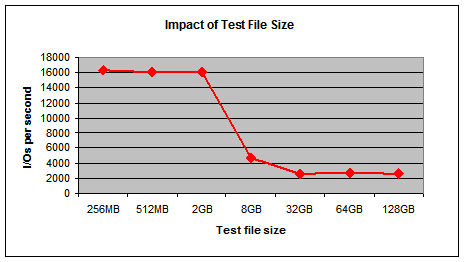
The impact of test file size

To drive home the fact that the size of the test file can have an overwhelming impact on the disk I/O benchmark results, I ran the following identical command line repeatedly with the testfile.dat set to different sizes:
sqlIO -kR -t1 -s30 -dE -o32 -frandom -b8 -BH -LS testfile.dat
The sizes of testfile.dat I tested included the following:
  • 256MB
  • 512MB
  • 2GB
  • 8GB
  • 32GB
  • 64GB
  • 128GB
The chart below illustrates the impact on I/Os per second when the size of the test file was the only parameter changed:

For different disk drives, the shape of the curve and the inflexion point will differ. But there is no mistake that it is meaningless to state a disk I/O metric without also disclosing the size of the test file.

Why size matters?

Among many factors that may help render the disk benchmark results sensitive to test file size, the following two are worth noting:
  • Disk seek area
  • Cache size
Before explaining why these two factors are significant, let me note that when you configure sqlio.exe to do random reads (or writes) there is no data locality. In other words, the I/O requests will not concentrate on a subset of the data, but will be distributed over the entire file.
Disk seek area. A larger file generally occupies a larger area on the disk platter than does a smaller file. For random access, this means that the disk arm has to cover more tracks, leading to a higher seek time on average. Since seek time is often the most significant time-consuming component in processing an I/O request, average I/O performance is therefore expected to drop when you increase the test file size.
Cache size. If an I/O request is satisfied with data already in the cache of a disk subsystem, seek time is no longer a factor. In addition, the more I/O requests that are satisfied only from the cache, the higher the average I/O performance. And the smaller the test file relative to the cache, the more likely the requested data will be found in the cache. It therefore follows that the smaller the test file the higher the average I/O performance.

What size to use?

This is a frequently asked question, but unfortunately there is no one-size-fit-all answer. If you read the literature on this topic, you will no doubt find that the most common recommendation is to use a test file that is larger than the cache size of the disk subsystem being benchmarked.
This is generally a good recommendation, but not an absolute truth. It is generally good because as a SQL Server user, you benchmark a disk to make better use of SQL Server for your application databases, and your application databases in general rarely fit entirely into the cache of your disk subsystem.
Then, why would you ever want to use a small test file? The most obvious reason is when you are dealing with databases that are small enough to be cached, and you want to get disk benchmark numbers that are relevant to these databases. There are also specific benchmarking scenarios in which a small test file is a must. Consider the case where you want to measure the read latency between the host OS and the I/O subsystem cache. You should configure your tests to eliminate the influence of the disk media access time, and a test file that is small enough to fit into the cache will do the trick.

Courtesy : http://www.sqlteam.com/article/benchmarking-disk-io-performance-size-matters

Inspecting disk IO performance with fio

Storage performance has failed to keep up with that of other major components of computer systems. Hard disks have gotten larger, but their speed has not kept pace with the relative speed improvements in RAM and CPU technology. The potential for your hard drive to be your system's performance bottleneck makes knowing how fast your disks and filesystems are and getting quantitative measurements on any improvements you can make to the disk subsystem important. One way to make disk access faster is to use more disks in combination, as in a RAID-5 configuration.
To get a basic idea of how fast a physical disk can be accessed from Linux you can use the hdparm tool with the -T and -t options. The -T option takes advantage of the Linux disk cache and gives an indication of how much information the system could read from a disk if the disk were fast enough to keep up. The -t option also reads the disk through the cache, but without any precaching of results. Thus -t can give an idea of how fast a disk can deliver information stored sequentially on disk.
The hdparm tool isn't the best indicator of real-world performance. It operates at a very low level; once you place a filesystem onto a disk partition you might get significantly different results. You will also see large differences in speed between sequential access and random access. It would also be good to be able to benchmark a filesystem stored on a group of disks in a RAID configuration.
fio was created to allow benchmarking specific disk IO workloads. It can issue its IO requests using one of many synchronous and asynchronous IO APIs, and can also use various APIs which allow many IO requests to be issued with a single API call. You can also tune how large the files fio uses are, at what offsets in those files IO is to happen at, how much delay if any there is between issuing IO requests, and what if any filesystem sync calls are issued between each IO request. A sync call tells the operating system to make sure that any information that is cached in memory has been saved to disk and can thus introduce a significant delay. The options to fio allow you to issue very precisely defined IO patterns and see how long it takes your disk subsystem to complete these tasks.
fio is packaged in the standard repository for Fedora 8 and is available for openSUSE through the openSUSE Build Service. Users of Debian-based distributions will have to compile from source with the make; sudo make install combination.
The first test you might like to perform is for random read IO performance. This is one of the nastiest IO loads that can be issued to a disk, because it causes the disk head to seek a lot, and disk head seeks are extremely slow operations relative to other hard disk operations. One area where random disk seeks can be issued in real applications is during application startup, when files are requested from all over the hard disk. You specify fio benchmarks using configuration files with an ini file format. You need only a few parameters to get started. rw=randread tells fio to use a random reading access pattern, size=128m specifies that it should transfer a total of 128 megabytes of data before calling the test complete, and the directory parameter explicitly tells fio what filesystem to use for the IO benchmark. On my test machine, the /tmp filesystem is an ext3 filesystem stored on a RAID-5 array consisting of three 500GB Samsung SATA disks. If you don't specify directory, fio uses the current directory that the shell is in, which might not be what you want. The configuration file and invocation is shown below.
$ cat random-read-test.fio ; random read of 128mb of data [random-read] rw=randread size=128m directory=/tmp/fio-testing/data $ fio random-read-test.fio random-read: (g=0): rw=randread, bs=4K-4K/4K-4K, ioengine=sync, iodepth=1 Starting 1 process random-read: Laying out IO file(s) (1 file(s) / 128MiB) Jobs: 1 (f=1): [r] [100.0% done] [ 3588/ 0 kb/s] [eta 00m:00s] random-read: (groupid=0, jobs=1): err= 0: pid=30598 read : io=128MiB, bw=864KiB/s, iops=211, runt=155282msec clat (usec): min=139, max=148K, avg=4736.28, stdev=6001.02 bw (KiB/s) : min= 227, max= 5275, per=100.12%, avg=865.00, stdev=362.99 cpu : usr=0.07%, sys=1.27%, ctx=32783, majf=0, minf=10 IO depths : 1=100.0%, 2=0.0%, 4=0.0%, 8=0.0%, 16=0.0%, 32=0.0%, >=64=0.0% issued r/w: total=32768/0, short=0/0 lat (usec): 250=34.92%, 500=0.36%, 750=0.02%, 1000=0.05% lat (msec): 2=0.41%, 4=12.80%, 10=44.96%, 20=5.16%, 50=0.94% lat (msec): 100=0.37%, 250=0.01% Run status group 0 (all jobs): READ: io=128MiB, aggrb=864KiB/s, minb=864KiB/s, maxb=864KiB/s, mint=155282msec, maxt=155282msec Disk stats (read/write): dm-6: ios=32768/148, merge=0/0, ticks=154728/12490, in_queue=167218, util=99.59%
fio produces many figures in this test. Overall, higher values for bandwidth and lower values for latency constitute better results.
The bw result shows the average bandwidth achieved by the test. The clat and bw lines show information about the completion latency and bandwidth respectively. The completion latency is the time between submitting a request and it being completed. The min, max, average, and standard deviation for the latency and bandwidth are shown. In this case, the standard deviation for both completion latency and bandwidth is quite large relative to the average value, so some IO requests were served much faster than others. The CPU line shows you how much impact the IO load had on the CPU, so you can tell if the processor in the machine is too slow for the IO you want to perform. The IO depths section is more interesting when you are testing an IO workload where multiple requests for IO can be outstanding at any point in time as is done in the next example. Because the above test only allowed a single IO request to be issued at any time, the IO depths were at 1 for 100% of the time. The latency figures indented under the IO depths section show an overview of how long each IO request took to complete; for these results, almost half the requests took between 4 and 10 milliseconds between when the IO request was issued and when the result of that request was reported. The latencies are reported as intervals, so the 4=12.80%, 10=44.96% section reports that 44.96% of requests took more than 4 (the previous reported value) and up to 10 milliseconds to complete.
The large READ line third from last shows the average, min, and max bandwidth for each execution thread or process. fio lets you define many threads or processes to all submit work at the same time during a benchmark, so you can have many threads, each using synchronous APIs to perform IO, and benchmark the result of all these threads running at once. This lets you test IO workloads that are closer to many server applications, where a new thread or process is spawned to handle each connecting client. In this case we have only one thread. As the READ line near the bottom of output shows, the single thread has an 864Kbps aggregate bandwidth (aggrb) which tells you that either the disk is slow or the manner in which IO is submitted to the disk system is not friendly, causing the disk head to perform many expensive seeks and thus producing a lower overall IO bandwidth. If you are submitting IO to the disk in a friendly way you should be getting much closer to the speeds that hdparm reports (typically around 40-60Mbps).
I performed the same test again, this time using the Linux asynchronous IO subsystem in direct IO mode with the possibility, based on the iodepth parameter, of eight requests for asynchronous IO being issued and not fulfilled because the system had to wait for disk IO at any point in time. The choice of allowing up to only eight IO requests in the queue was arbitrary, but typically an application will limit the number of outstanding requests so the system does not become bogged down. In this test, the benchmark reported almost three times the bandwidth. The abridged results are shown below. The IO depths show how many asynchronous IO requests were issued but had not returned data to the application during the course of execution. The figures are reported for intervals from the previous figure; for example, the 8=96.0% tells you that 96% of the time there were five, six, seven, or eight requests in the async IO queue, while, based on 4=4.0%, 4% of the time there were only three or four requests in the queue.
$ cat random-read-test-aio.fio ; same as random-read-test.fio ; ... ioengine=libaio iodepth=8 direct=1 invalidate=1 $ fio random-read-test-aio.fio random-read: (groupid=0, jobs=1): err= 0: pid=31318 read : io=128MiB, bw=2,352KiB/s, iops=574, runt= 57061msec slat (usec): min=8, max=260, avg=25.90, stdev=23.23 clat (usec): min=1, max=124K, avg=13901.91, stdev=12193.87 bw (KiB/s) : min= 0, max= 5603, per=97.59%, avg=2295.43, stdev=590.60 ... IO depths : 1=0.1%, 2=0.1%, 4=4.0%, 8=96.0%, 16=0.0%, 32=0.0%, >=64=0.0% ... Run status group 0 (all jobs): READ: io=128MiB, aggrb=2,352KiB/s, minb=2,352KiB/s, maxb=2,352KiB/s, mint=57061msec, maxt=57061msec
Random reads are always going to be limited by the seek time of the disk head. Because the async IO test could issue as many as eight IO requests before waiting for any to complete, there was more chance for reads in the same disk area to be completed together, and thus an overall boost in IO bandwidth.
The HOWTO file from the fio distribution gives full details of the options you can use to specify benchmark workloads. One of the more interesting parameters is rw, which can specify sequential or random reads and or writes in many combinations. The ioengine parameter can select how the IO requests are issued to the kernel. The invalidate option causes the kernel buffer and page cache to be invalidated for a file before beginning the benchmark. The runtime specifies that a test should run for a given amount of time and then be considered complete. The thinktime parameter inserts a specified delay between IO requests, which is useful for simulating a real application that would normally perform some work on data that is being read from disk. fsync=n can be used to issue a sync call after every n writes issued. write_iolog and read_iolog cause fio to write or read a log of all the IO requests issued. With these commands you can capture a log of the exact IO commands issued, edit that log to give exactly the IO workload you want, and benchmark those exact IO requests. The iolog options are great for importing an IO access pattern from an existing application for use with fio.

Simulating servers

You can also specify multiple threads or processes to all submit IO work at the same time to benchmark server-like filesystem interaction. In the following example I have four different processes, each issuing their own IO loads to the system, all running at the same time. I've based the example on having two memory-mapped query engines, a background updater thread, and a background writer thread. The difference between the two writing threads is that the writer thread is to simulate writing a journal, whereas the background updater must read and write (update) data. bgupdater has a thinktime of 40 microseconds, causing the process to sleep for a little while after each completed IO.
$ cat four-threads-randio.fio ; Four threads, two query, two writers. [global] rw=randread size=256m directory=/tmp/fio-testing/data ioengine=libaio iodepth=4 invalidate=1 direct=1 [bgwriter] rw=randwrite iodepth=32 [queryA] iodepth=1 ioengine=mmap direct=0 thinktime=3 [queryB] iodepth=1 ioengine=mmap direct=0 thinktime=5 [bgupdater] rw=randrw iodepth=16 thinktime=40 size=32m $ fio four-threads-randio.fio bgwriter: (g=0): rw=randwrite, bs=4K-4K/4K-4K, ioengine=libaio, iodepth=32 queryA: (g=0): rw=randread, bs=4K-4K/4K-4K, ioengine=mmap, iodepth=1 queryB: (g=0): rw=randread, bs=4K-4K/4K-4K, ioengine=mmap, iodepth=1 bgupdater: (g=0): rw=randrw, bs=4K-4K/4K-4K, ioengine=libaio, iodepth=16 Starting 4 processes bgwriter: (groupid=0, jobs=1): err= 0: pid=3241 write: io=256MiB, bw=7,480KiB/s, iops=1,826, runt= 35886msec slat (usec): min=9, max=106K, avg=35.29, stdev=583.45 clat (usec): min=117, max=224K, avg=17365.99, stdev=24002.00 bw (KiB/s) : min= 0, max=14636, per=72.30%, avg=5746.62, stdev=5225.44 cpu : usr=0.40%, sys=4.13%, ctx=18254, majf=0, minf=9 IO depths : 1=0.1%, 2=0.1%, 4=0.4%, 8=3.3%, 16=59.7%, 32=36.5%, >=64=0.0% issued r/w: total=0/65536, short=0/0 lat (usec): 250=0.05%, 500=0.33%, 750=0.70%, 1000=1.11% lat (msec): 2=7.06%, 4=14.91%, 10=27.10%, 20=21.82%, 50=20.32% lat (msec): 100=4.74%, 250=1.86% queryA: (groupid=0, jobs=1): err= 0: pid=3242 read : io=256MiB, bw=589MiB/s, iops=147K, runt= 445msec clat (usec): min=2, max=165, avg= 3.48, stdev= 2.38 cpu : usr=70.05%, sys=30.41%, ctx=91, majf=0, minf=65545 IO depths : 1=100.0%, 2=0.0%, 4=0.0%, 8=0.0%, 16=0.0%, 32=0.0%, >=64=0.0% issued r/w: total=65536/0, short=0/0 lat (usec): 4=76.20%, 10=22.51%, 20=1.17%, 50=0.05%, 100=0.05% lat (usec): 250=0.01% queryB: (groupid=0, jobs=1): err= 0: pid=3243 read : io=256MiB, bw=455MiB/s, iops=114K, runt= 576msec clat (usec): min=2, max=303, avg= 3.48, stdev= 2.31 bw (KiB/s) : min=464158, max=464158, per=1383.48%, avg=464158.00, stdev= 0.00 cpu : usr=73.22%, sys=26.43%, ctx=69, majf=0, minf=65545 IO depths : 1=100.0%, 2=0.0%, 4=0.0%, 8=0.0%, 16=0.0%, 32=0.0%, >=64=0.0% issued r/w: total=65536/0, short=0/0 lat (usec): 4=76.81%, 10=21.61%, 20=1.53%, 50=0.02%, 100=0.03% lat (usec): 250=0.01%, 500=0.01% bgupdater: (groupid=0, jobs=1): err= 0: pid=3244 read : io=16,348KiB, bw=1,014KiB/s, iops=247, runt= 16501msec slat (usec): min=7, max=42,515, avg=47.01, stdev=665.19 clat (usec): min=1, max=137K, avg=14215.23, stdev=20611.53 bw (KiB/s) : min= 0, max= 1957, per=2.37%, avg=794.90, stdev=495.94 write: io=16,420KiB, bw=1,018KiB/s, iops=248, runt= 16501msec slat (usec): min=9, max=42,510, avg=38.73, stdev=663.37 clat (usec): min=202, max=229K, avg=49803.02, stdev=34393.32 bw (KiB/s) : min= 0, max= 1840, per=10.89%, avg=865.54, stdev=411.66 cpu : usr=0.53%, sys=1.39%, ctx=12089, majf=0, minf=9 IO depths : 1=0.1%, 2=0.1%, 4=0.3%, 8=22.8%, 16=76.8%, 32=0.0%, >=64=0.0% issued r/w: total=4087/4105, short=0/0 lat (usec): 2=0.02%, 4=0.04%, 20=0.01%, 50=0.06%, 100=1.44% lat (usec): 250=8.81%, 500=4.24%, 750=2.56%, 1000=1.17% lat (msec): 2=2.36%, 4=2.62%, 10=9.47%, 20=13.57%, 50=29.82% lat (msec): 100=19.07%, 250=4.72% Run status group 0 (all jobs): READ: io=528MiB, aggrb=33,550KiB/s, minb=1,014KiB/s, maxb=589MiB/s, mint=445msec, maxt=16501msec WRITE: io=272MiB, aggrb=7,948KiB/s, minb=1,018KiB/s, maxb=7,480KiB/s, mint=16501msec, maxt=35886msec Disk stats (read/write): dm-6: ios=4087/69722, merge=0/0, ticks=58049/1345695, in_queue=1403777, util=99.74%
As one would expect, the bandwidth the array achieved in the query and writer processes was vastly different. Queries are performed at about 500Mbps while writing comes in at 1Mbps or 7.5Mbps depending on whether it is read/write or purely write performance respectively. The IO depths show the number of pending IO requests that are queued when an IO request is issued. For example, for the bgupdater process, nearly 1/4 of the async IO requests are being fulfilled with eight or less requests in the queue of a potential 16. In contrast, the bgwriter has more than half of its requests performed with 16 or less pending requests in the queue.
To contrast with the three-disk RAID-5 configuration, I reran the four-threads-randio.fio test on a single Western Digital 750GB drive. The bgupdater process achieved less than half the bandwidth and each of the query processes ran at 1/3 the overall bandwidth. For this test the Western Digital drive was on a different computer with different CPU and RAM specifications as well, so any comparison should be taken with a grain of salt.
bgwriter: (groupid=0, jobs=1): err= 0: pid=14963 write: io=256MiB, bw=6,545KiB/s, iops=1,597, runt= 41013msec queryA: (groupid=0, jobs=1): err= 0: pid=14964 read : io=256MiB, bw=160MiB/s, iops=39,888, runt= 1643msec queryB: (groupid=0, jobs=1): err= 0: pid=14965 read : io=256MiB, bw=163MiB/s, iops=40,680, runt= 1611msec bgupdater: (groupid=0, jobs=1): err= 0: pid=14966 read : io=16,416KiB, bw=422KiB/s, iops=103, runt= 39788msec write: io=16,352KiB, bw=420KiB/s, iops=102, runt= 39788msec READ: io=528MiB, aggrb=13,915KiB/s, minb=422KiB/s, maxb=163MiB/s, mint=1611msec, maxt=39788msec WRITE: io=272MiB, aggrb=6,953KiB/s, minb=420KiB/s, maxb=6,545KiB/s, mint=39788msec, maxt=41013msec
The vast array of ways that fio can issue its IO requests lends it to benchmarking IO patterns and the use of various APIs to perform that IO. You can also run identical fio configurations on different filesystems or underlying hardware to see what difference changes at that level will make to performance.
Benchmarking different IO request systems for a particular IO pattern can be handy if you are about to write an IO-intensive application but are not sure which API and design will work best on your hardware. For example, you could keep the disk system and RAM fixed and see how well an IO load would be serviced using memory-mapped IO or the Linux asyncio interface. Of course this requires you to have a very intricate knowledge of the typical IO requests that your application will issue. If you already have a tool that uses something like memory-mapped files, then you can get IO patterns for typical use from the existing tool, feed them into fio using different IO engines, and get a reasonable picture of whether it might be worth porting the application to a different IO API for better performance.

Courtesy : http://www.linux.com/archive/feature/131063

Tuesday, April 12, 2011

The TCPIP nagle algorithm can slow down network

When a file is sent over the network the file is chopped up in small packets, which are then sent to the destination. The TCPIP protocol is a secure protocol and demands that each packet is acknowledged, so the receiver has to respond with a matching ACK packet. It is important for the sender not to flood the receiver and for the receiver not to flood the sender.

The Nagle algorithm (by John Nagle) is a method for congestion control (RFC 896), so the sender won't flood the receiver with data. When the sender sends a packet to the receiver, then the sender will wait for an ACK from the receiver before sending the following packets.

The delayed ACK algorithm is also a method for congestion control (RFC 2581), so the receiver won't flood the network with ACK packets. When the receiver has to sent an ACK in response to a packet, then it waits a little (200 ms or until it has 2 outstanding ACKs) to see if more packets should arrive that it can acknowledge with that single ACK.

The delayed ACK algorithm can slow down the network, if the sender doesn't send the next packet before receiving the ACK of the previous packet (200 ms delay).
The delayed ACK algorithm can get even worse when combined with the Nagle algorithm, if the sender sends two packets and waits for ACK, as nagling will hold back the second packet until recieving the delayed ACK for the first packet (400 ms delay).

The solution to such slow downs is to disable or lower the delayed ACK timeout.

To configure the max outstanding ACKs in Windows XP/2003/Vista/2008:
[HKEY_LOCAL_MACHINE \SYSTEM \CurrentControlSet \Services \Tcpip \Parameters \Interfaces \{Adapter-id}]
TcpAckFrequency = 2 (Default=2, 1=Disables delayed ACK, 2-n = If n outstanding ACKs before timed interval, sent ACK)

More Info MS KB Q328890
More Info MS KB 815230 (XP/2003 needs hotfix or SP2 for it to work)
More Info MS KB 935458 (Vista needs hotfix or SP1 for it to work)
To configure the interval timeout in Win2000 SP3+:
[HKEY_LOCAL_MACHINE \SYSTEM \CurrentControlSet \Services \Tcpip \Parameters \Interfaces \{Adapter-id}]
TcpDelAckTicks = 1 (Default=2, 0=Disables delayed ACK, 1-6 = 100-600 ms)

More Info MS KB Q311833
More Info MS KB Q321098
More Info MS KB Q321169
To configure the interval timeout in WinNT SP4 (Go to the Services-key and do a search for "TCPIP" to find the different adapters using TCPIP):
[HKEY_LOCAL_MACHINE \SYSTEM \CurrentControlSet \Services \{Adapter-Name} \Parameters \Tcpip]
TcpDelAckTicks = 1 (Default=2, 0=Disables nagling, 1-6 = 100-600 ms)
Note if disabling or shortening delayed ACK on a few machines (Like a file-server or domain-controller), then it will probably result in greater network performance for those machines. If on large corporate network and disabling delayed ACK for all computers, then it will most likely lower the available bandwidth for actual filetransfer as more of the bandwidth is used for sending ACKs.

Note before trying to disable ACK delay (RFC 1122) one should at least consider the following:
  • Increased performance will only be seen if requests are sent to your machine, and the requesters doesn't request anything else before your machine replies back(ACK) to the first request.
  • Some additions to the above statement:
    • If the application doing socket communication uses the socket option TCP_NODELAY, then it will disable the nagle algorithm but not the delayed ACK.
    • If all of the upload bandwidth is already used (easy if slow connection), then then disabling delayed ACK will lower performance because it will generate even more upload traffic.
    • If on a half duplex connection, then disabling delayed ACK will lower performance because only one party can sent at a time (Receiver will block the sender when sending ACK).
    • If on a ethernet hub with other computers(Instead of a switch), then disabling delayed ACK will lower performance because the increased traffic will increase chance of collision and require retransmissions.
Note Explorer.exe doesn't copy the next file before the previous file was acknowledged (XCOPY doesn't have this behavior). This means it that the receiver will only accept a file at every ACK interval, and as the default ACK interval is 200 ms, which means that the it will copy max 5 files/sec for a single connection (Imagine copying 1000 files of 1 Kbyte). The performance can be improved some if dragging a folder containing the files instead of selecting all the files and dragging.

Note SMB Signing requires that SMB commands are processed synchronously, so a client is only allowed to send the next SMB command when it receives ACK of the previous one (Only one outstanding). This means that a client can max sent 5 SMB Commands/sec, as it has to wait for the Server's 200 ms ACK delay before it is allowed to sent the next SMB Command. This can cause very low performance when copying small files to a Server with SMB signing enabled (Imagine copying 1000 files of 1 Kbyte).

Note if a computer's only job is to receive large files or streaming data, one can increase performance by increasing the number of outstanding ACKs before it sends an ACK (TcpAckFrequency). It will allow acknowledgment of large chunks of data with a single ACK packet instead of sending ACK for every 2 packet. Make sure that the TCPIP RWIN is larger than TcpAckFrequency*MTU, as the sender will stop sending data if it fills the TCPIP RWIN without getting an ACK. Recommended values:
  • 1 GigaBit: TcpAckFrequency = 13 (RWIN = 64 KByte)
  • 100 MegaBit: TcpAckFrequency = 5 (RWIN = 17 KByte)
  • 10 MegaBit: TcpAckFrequency = 2 (RWIN = 8 KByte)

Linux Tuning Parameters

Kernel

To successfully run enterprise applications, such as a database server, on your Linux distribution, you may be required to update some of the default kernel parameter settings. For example, the 2.4.x series kernel message queue parameter msgmni has a default value (for example, shared memory, or shmmax is only 33,554,432 bytes on Red Hat Linux by default) that allows only a limited number of simultaneous connections to a database.  Here are some recommended values (by the IBM DB2 Support Web site) for database servers to run optimally:
- kernel.shmmax=268435456 for 32-bit
- kernel.shmmax=1073741824 for 64-bit
- kernel.msgmni=1024
- fs.file-max=8192
- kernel.sem="250 32000 32 1024"
Shared Memory
To view current settings, run command:
# more /proc/sys/kernel/shmmax
To set it to a new value for this running session, which takes effect immediately, run command:
# echo 268435456 > /proc/sys/kernel/shmmax
To set it to a new value permanently (so it survives reboots), modify the sysctl.conf file:
...
kernel.shmmax = 268435456
...
Semaphores
To view current settings, run command:
# more /proc/sys/kernel/sem 
250 32000 32 1024 
To set it to a new value for this running session, which takes effect immediately, run command:
# echo 500 512000 64 2048 > /proc/sys/kernel/sem
Parameters meaning:
SEMMSL - semaphores per ID
SEMMNS - (SEMMNI*SEMMSL) max semaphores in system
SEMOPM - max operations per semop call
SEMMNI - max semaphore identifiers
ulimits
To view current settings, run command:
# ulimit -a
To set it to a new value for this running session, which takes effect immediately, run command:
# ulimit -n 8800
# ulimit -n -1 // for unlimited; recommended if server isn't shared

Alternatively, if you want the changes to survive reboot, do the following:

- Exit all shell sessions for the user you want to change limits on.
- As root, edit the file /etc/security/limits.conf and add these two lines toward the end:
 user1        soft    nofile          16000
 user1        hard    nofile          20000
  ** the two lines above changes the max number of file handles - nofile - to new settings.
- Save the file.
- Login as the user1 again. The new changes will be in effect.

Message queues
To view current settings, run command:
# more /proc/sys/kernel/msgmni
# more /proc/sys/kernel/msgmax
To set it to a new value for this running session, which takes effect immediately, run command:
# echo 2048 > /proc/sys/kernel/msgmni
# echo 64000 > /proc/sys/kernel/msgmax

Network

Gigabit-based network interfaces have many performance-related parameters inside of their device driver such as CPU affinity.  Also, the TCP protocol can be tuned to increase network throughput for connection-hungry applications. 


Tune TCP
To view current TCP settings, run command:
# sysctl net.ipv4.tcp_keepalive_time
net.ipv4.tcp_keepalive_time = 7200 // 2 hours
where net.ipv4.tcp_keepalive_time is a TCP tuning parameter.
To set a TCP parameter to a value, run command:
# sysctl -w net.ipv4.tcp_keepalive_time=1800
A list of recommended TCP parameters, values, and their meanings:
Tuning Parameter  Tuning Value    Description of impact 
------------------------------------------------------------------------------
net.ipv4.tcp_tw_reuse 
net.ipv4.tcp_tw_recycle  1    Reuse sockets in the time-wait state 
---
net.core.wmem_max   8388608   Increase the maximum write buffer queue size 
---
net.core.rmem_max   8388608   Increase the maximum read buffer queue size 
---
net.ipv4.tcp_rmem   4096 87380 8388608  Set the minimum, initial, and maximum sizes for the 
       read buffer. Note that this maximum should be less 
       than or equal to the value set in net.core.rmem_max. 
---
net.ipv4.tcp_wmem   4096 87380 8388608  Set the minimum, initial, and maximum sizes for the 
       write buffer. Note that this maximum should be less 
       than or equal to the value set in net.core.wmem_max. 
---
timeout_timewait   echo 30 > /proc/sys/net/ipv4/tcp_fin_timeout Determines the time that must elapse before 
       TCP/IP can release a closed connection and reuse its resources. 
       This interval between closure and release is known as the TIME_WAIT 
       state or twice the maximum segment lifetime (2MSL) state. 
       During this time, reopening the connection to the client and 
       server cost less than establishing a new connection. By reducing the 
       value of this entry, TCP/IP can release closed connections faster, providing 
       more resources for new connections. Adjust this parameter if the running application 
       requires rapid release, the creation of new connections, and a low throughput 
       due to many connections sitting in the TIME_WAIT state. 

Disk I/O

Choose the Right File System
Use 'ext3' file system in Linux. 
- It is enhanced version of ext2
- With journaling capability - high level of data integrity (in event of unclean shutdown)
- It does not need to check disks on unclean shutdown and reboot (time consuming)
- Faster write - ext3 journaling optimizes hard drive head motion
# mke2fs -j -b 2048 -i 4096 /dev/sda
mke2fs 1.32 (09-Nov-2002)
/dev/sda is entire device, not just one partition!
Proceed anyway? (y,n) y
Filesystem label=
OS type: Linux
Block size=2048 (log=1)
Fragment size=2048 (log=1)
13107200 inodes, 26214400 blocks
1310720 blocks (5.00%) reserved for the super user
First data block=0
1600 block groups
16384 blocks per group, 16384 fragments per group
8192 inodes per group
Superblock backups stored on blocks:
        16384, 49152, 81920, 114688, 147456, 409600, 442368, 802816, 1327104,
        2048000, 3981312, 5619712, 10240000, 11943936

Writing inode tables: done
Writing superblocks and filesystem accounting information: done

This filesystem will be automatically checked every 28 mounts or
180 days, whichever comes first.  Use tune2fs -c or -i to override.
Use 'noatime' File System Mount Option
Use 'noatime' option in the file system boot-up configuration file 'fstab'.  Edit the fstab file under /etc.  This option works the best if external storage is used, for example, SAN:

# more /etc/fstab
LABEL=/                 /                       ext3    defaults        1 1
none                    /dev/pts                devpts  gid=5,mode=620  0 0
none                    /proc                   proc    defaults        0 0
none                    /dev/shm                tmpfs   defaults        0 0
/dev/sdc2               swap                    swap    defaults        0 0
/dev/cdrom              /mnt/cdrom              udf,iso9660 noauto,owner,kudzu,ro 0 0
/dev/fd0                /mnt/floppy             auto    noauto,owner,kudzu 0 0
/dev/sda                /database               ext3    defaults,noatime 1 2
/dev/sdb                /logs                   ext3    defaults,noatime 1 2
/dev/sdc                /multimediafiles        ext3    defaults,noatime 1 2
Tune the Elevator Algorithm in Linux Kernel for Disk I/O
After choosing the file system, there are several kernel and mounting options that can affect it. One such kernel setting is the elevator algorithm. Tuning the elevator algorithm helps the system balance the need for low latency with the need to collect enough data to efficiently organize batches of read and write requests to the disk. The elevator algorithm can be adjusted with the following command:
# elvtune -r 1024 -w 2048 /dev/sda
/dev/sda elevator ID 2 
read_latency: 1024 
write_latency: 2048 
max_bomb_segments: 6 
The parameters are: read latency (-r), write latency (-w) and the device affected. 
Red Hat recommends using a read latency half the size of the write latency (as shown). 
As usual, to make this setting permanent, add the 'elvtune' command to the 
/etc/rc.d/rc.local script.

Others

Disable Unnecessary Daemons (They Take up Memory and CPU)
There are daemons (background services) running on every server that are probably not needed. Disabling these daemons frees memory, decreases startup time, and decreases the number of processes that the CPU has to handle. A side benefit to this is increased security of the server because fewer daemons mean fewer exploitable processes.

Some example Linux daemons running by default (and should be disabled).  Use command:
#/sbin/chkconfig --levels 2345 sendmail off 
#/sbin/chkconfig sendmail off 
Daemon
Description
apmd
Advanced power management daemon
autofs
Automatically mounts file systems on demand (i.e.: mounts a CD-ROM automatically)
cups
Common UNIX� Printing System
hpoj
HP OfficeJet support
isdn
ISDN modem support
netfs
Used in support of exporting NFS shares
nfslock
Used for file locking with NFS
pcmcia
PCMCIA support on a server
rhnsd
Red Hat Network update service for checking for updates and security errata
sendmail
Mail Transport Agent
xfs
Font server for X Windows
Shutdown GUI
Normally, there is no need for a GUI on a Linux server. All administration tasks can be achieved by the command line, redirecting the X display or through a Web browser interface.  Modify the 'inittab' file to set boot level as 3:
To set the initial runlevel (3 instead of 5) of a machine at boot, 
modify the /etc/inittab file as shown:
 
Courtesy : http://www.performancewiki.com/linux-tuning.html